Messenger
Step 1: Create an App
-
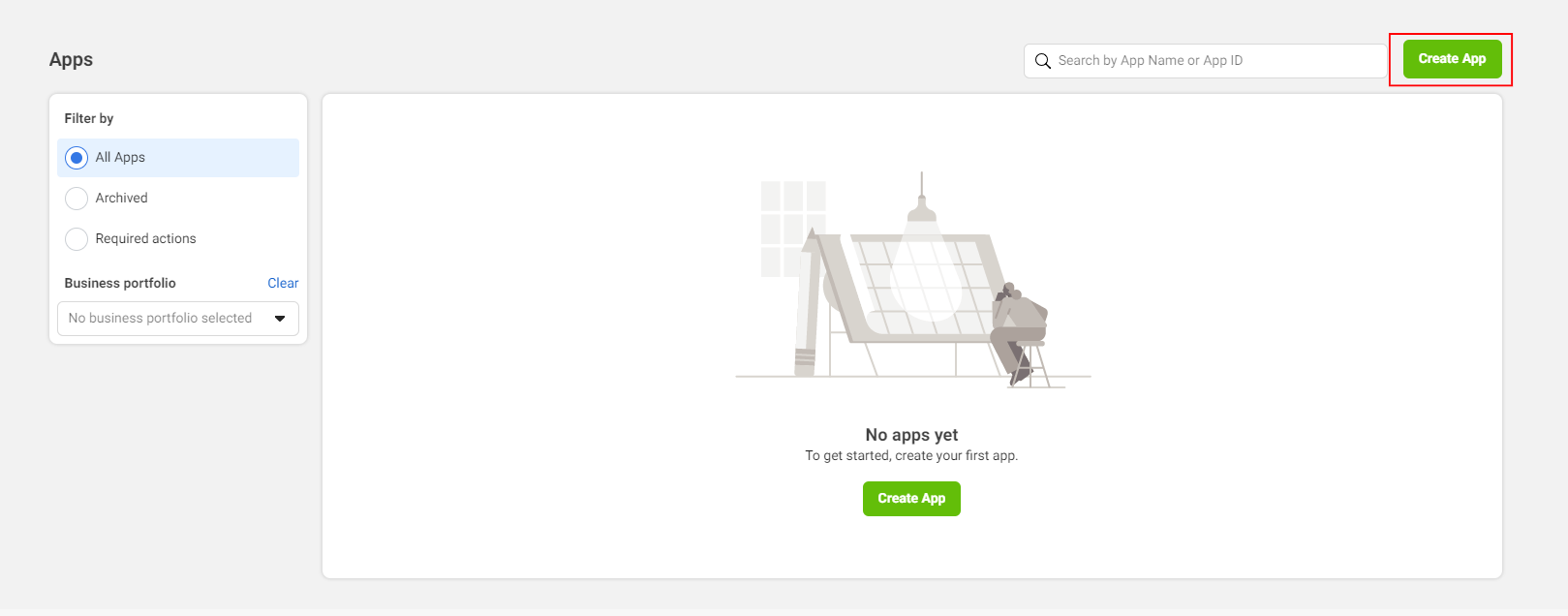
Log in to Meta for Developers and click Create App.\
-
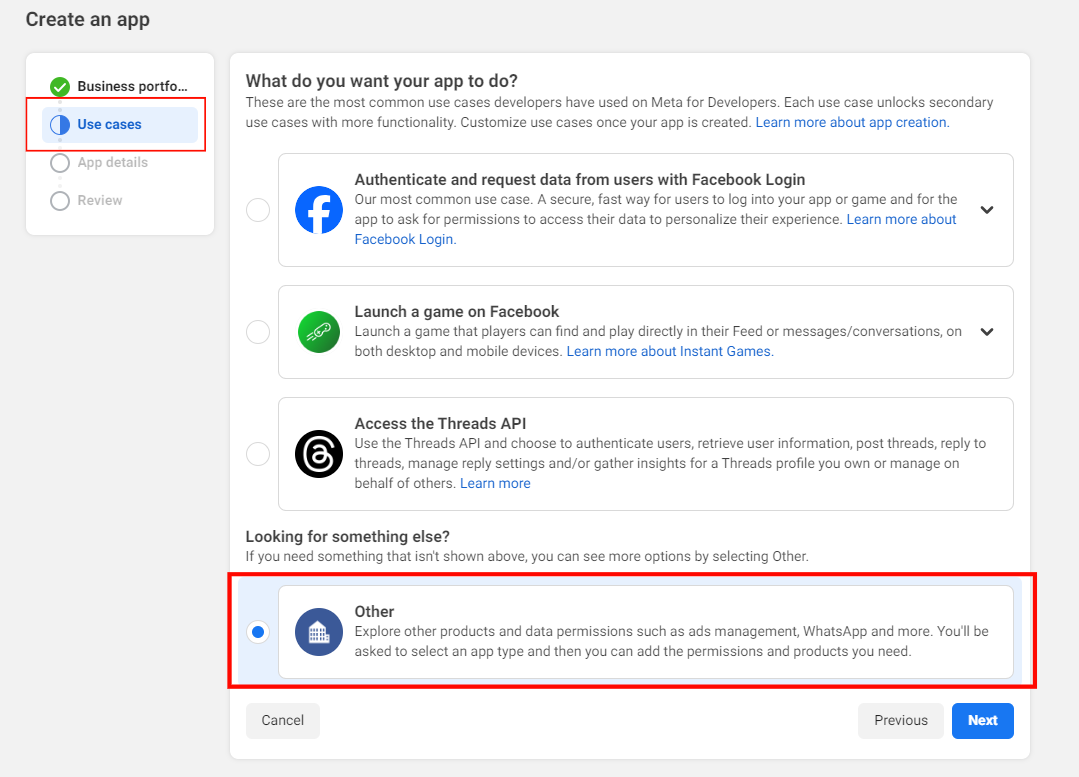
For the usage of the application, select Other, and then click Next.\
-
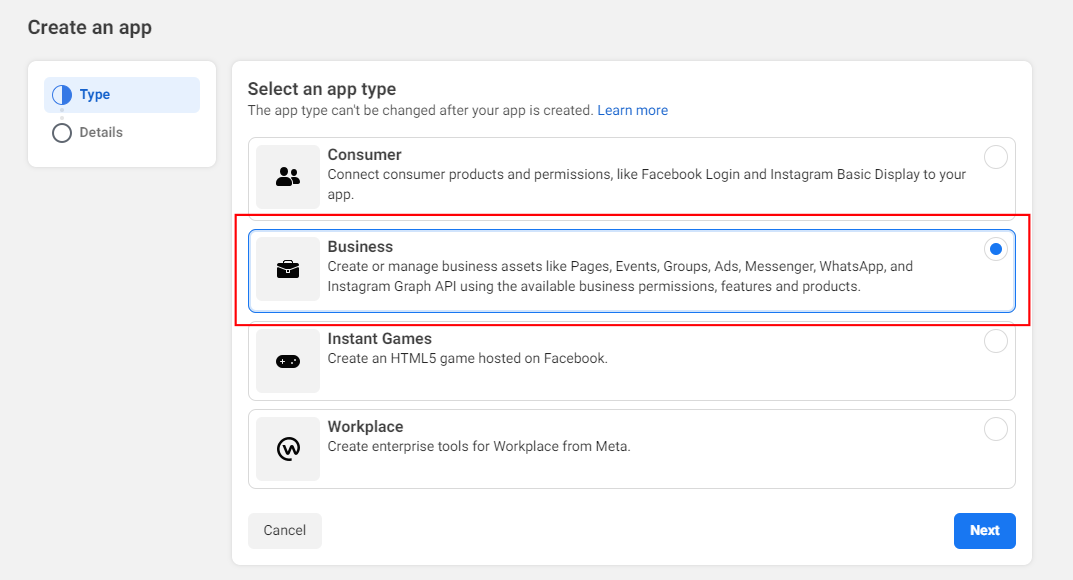
Select the Business application type and click Next.\
-
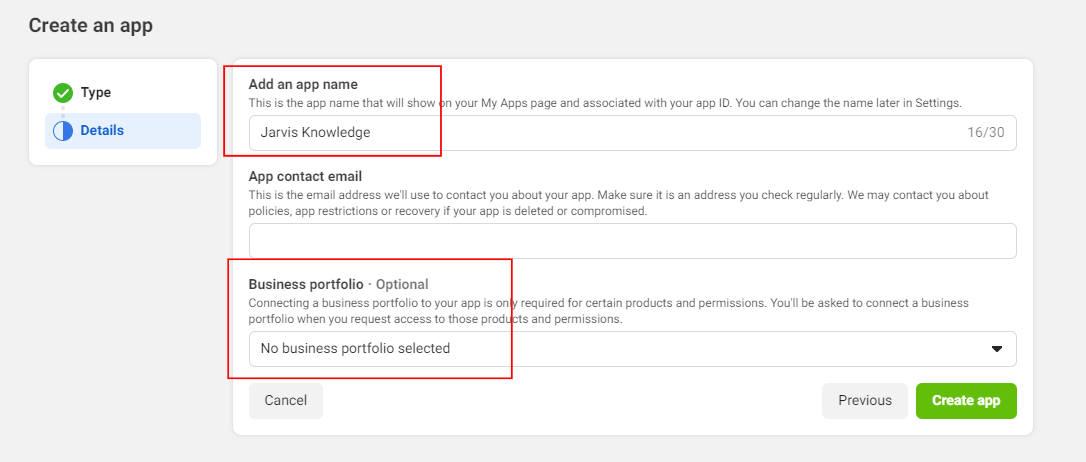
Enter the application name and click Create app. If you have a business account, link your account.\
Step 2: Get Messenger configurations
-
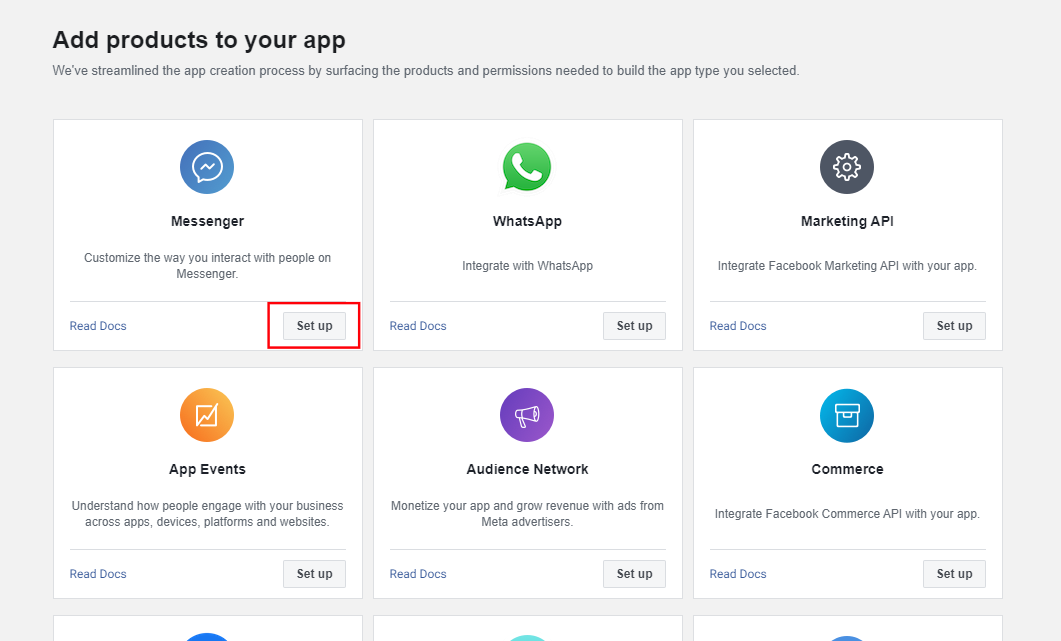
On the application page, click Add Product and find Messenger in the displayed page. Then click Set up.\
-
Click Messenger API Settings, and then click Configure on the displayed Configure webhooks page.
\.png)
-
In the Edit Callback URL dialogbox, configure the following parameters and click Verify and save.\
.png)
- Callback URL: Enter Callback URL in your configure bot screen.
- Verify Token: Enter knowledge.
-
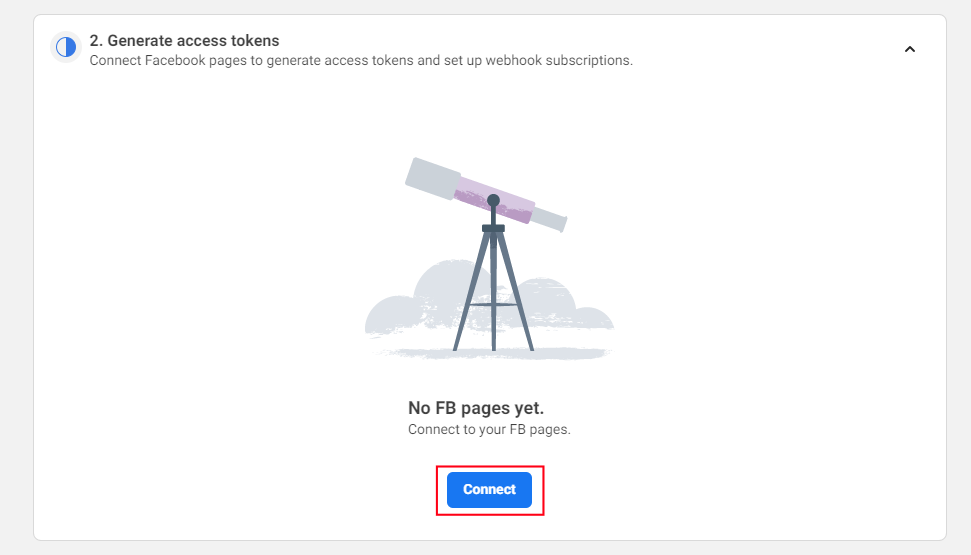
Move to the Generate access tokens section, click Connect.\
-
After associating a page, click Add Subscriptions.\
-fotor-2024071110229.png)
-
In the pop-up dialogbox, select Messages, and click Confirm.\
-fotor-20240711102420.png)
-
In the Generate access tokens section, click Generate.\
-fotor-20240711102652.png)
-
Copy and save the generated page token and the page ID, then select the I understand checkbox and click Done.
-
The page ID and token will be used later in the Jarvis knowledge configuration.\
-fotor-20240711102928.png)
-
In the left navigation panel, select App settings > Basic, and copy the App secret. Save the app secret, it will be used later in the Jarvis knowledge configuration.\
